Déclic · Guides · AI video & voice
Guide
How to animate a photo with AI for free (and what free really means)
Ad: this page contains affiliate links. If you sign up through them, Déclic earns a commission at no extra cost to you. Our opinions are our own.
In brief
You can animate a still photo for free with AI, but "free" usually means a small number of credits, a watermark on the result and limits on what you may do with it. The method is the same in every tool: choose a clear photo you have the right to use, describe the movement you want in one or two sentences, generate a few short versions and keep the best. Among the tools in the catalogue, DeeVid AI's pricing page (October 2026) lists 20 free credits on registration and a watermark on free exports, Kling gives non-subscribers free credits each month on login, and PixVerse's free plan gives 60 credits at the start and 30 a day, at up to 540P. Respect the people in your photos: consent matters, and creating intimate deepfakes is a criminal offence in the UK.
Who it suits: anyone who wants a few seconds of motion from a family picture, a landscape or a product photo, without video-editing skills. Who it does not suit: people who need clean, commercially cleared videos at no cost, or who would animate someone else's photo without their agreement.
What do you want to animate, and what are you willing to pay?
Two questions decide which route to take. You can answer them without any software.
Question 1: what is the animation for?
- A private keepsake, such as a family photo you will only share with relatives.
- A social post or a small project.
- Something commercial: an advert, a product page, a client job.
Question 2: what is your budget?
- Nothing at all.
- A small payment is possible if the result is worth it.
How to read your answers:
| Your answers | Sensible route |
|---|---|
| Private keepsake, no budget | Use the free credits of one tool, accept the watermark, and keep the result for yourself |
| Social post, no budget | Use free credits, but read the terms: free exports are watermarked and commercial rights are usually reserved for paid plans |
| Anything commercial | Plan on a paid plan and get the commercial rights in writing before you publish |
| Any use, small budget | Compare two paid entry plans on credits, resolution and rights, using the checklist below |
Which free tools can animate a photo?
Searches around this topic include "online", "app", "without login" and "image to animation free". The three tools below are in the catalogue and are positioned on animating images; this is not a claim that they are the only options.
| Tool | What the official pages say | Free output |
|---|---|---|
| DeeVid AI | Presents photos, text, video and audio as inputs; "Drop in a photo and watch it come to life in seconds" | 20 credits on registration (about four videos), watermark, 720P on Lite and 1080P on Pro and Premium |
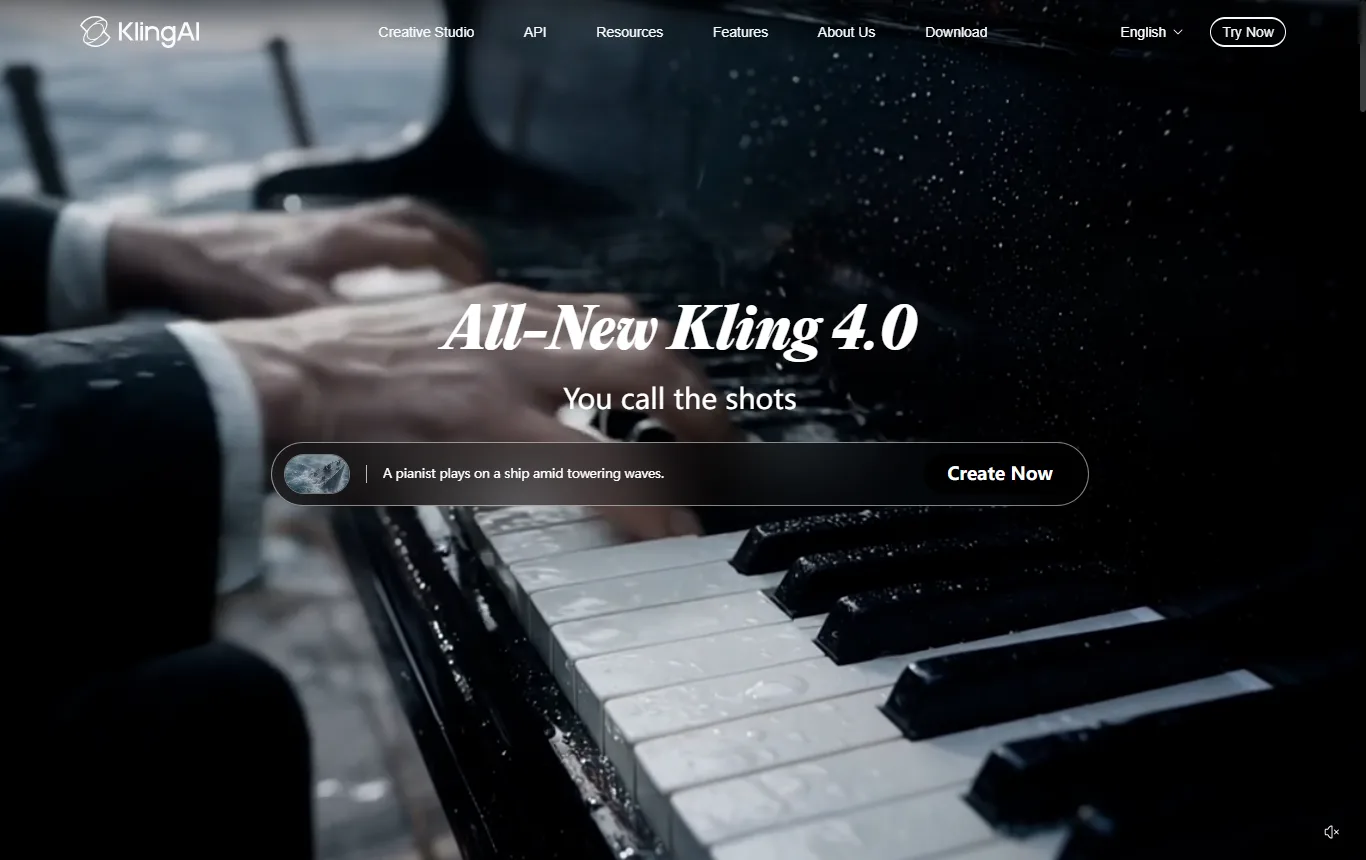
| Kling AI | A video and image generator built on its Kling 4.0 and Kling Image 3.0 models | Free credits claimed monthly on login, amount not displayed; watermark removal and commercial use for paid members |
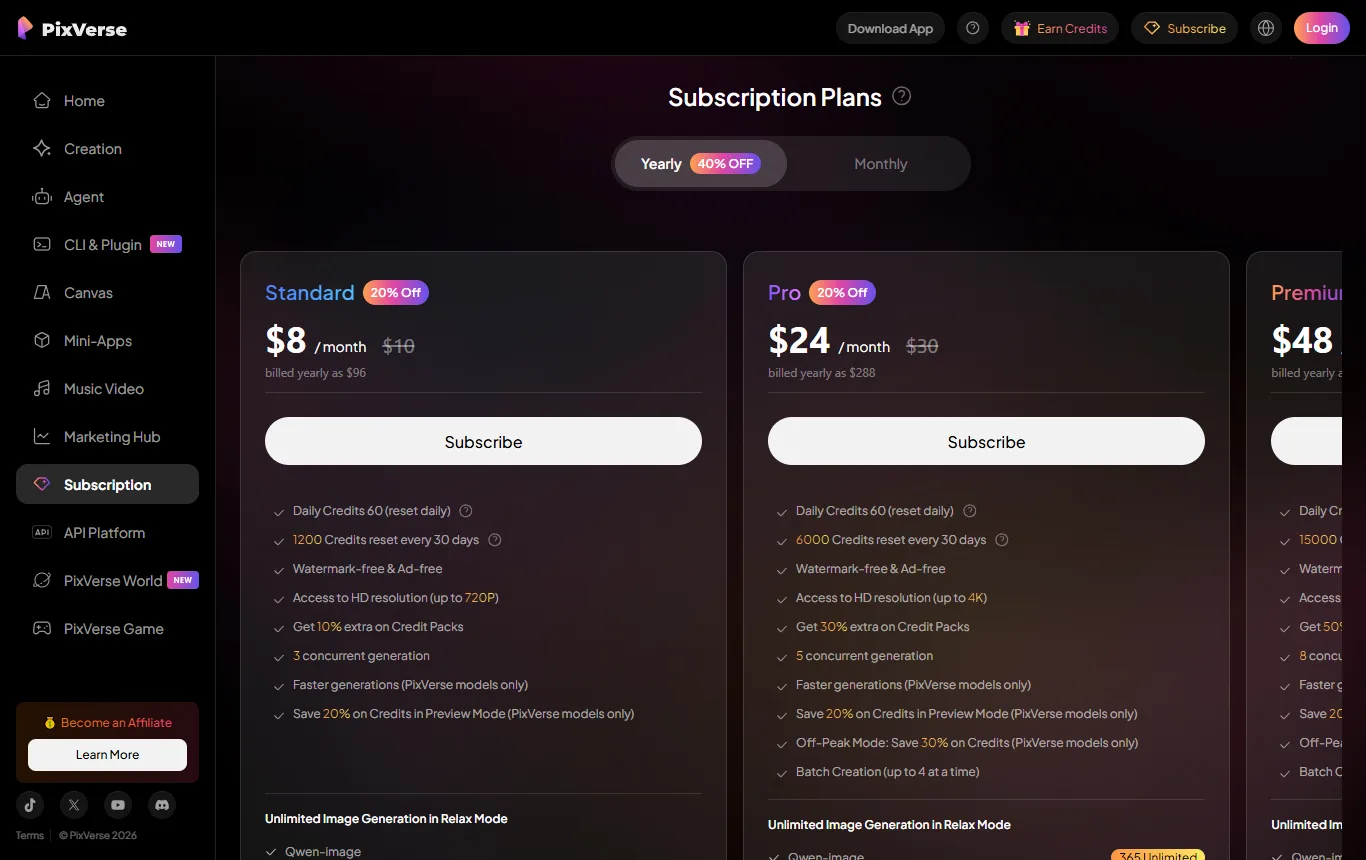
| PixVerse | Short clips and effects from an image or a prompt | 60 credits at the start, then 30 a day, up to 540P, with a watermark |
DeeVid AI starts with a clear allowance: 20 credits, described as about four videos, and paid plans of Lite, Pro and Premium above it. Kling AI gives non-subscribers free credits each month on login, valid for 31 days; daily bonus credits are for subscribers only. PixVerse renews its daily allowance at midnight UTC and the unused part is lost, so a free account rewards regular small attempts rather than one long session. For a fuller comparison, including rights and resolution, see our guide to the best AI video generators →. For the details of one tool's free tier, Kling AI free → goes through credits, watermark and terms.

What is really free, and what is not?
| Question | Free access, as documented | Check yourself |
|---|---|---|
| Can I try it at no cost? | Yes, with credits (DeeVid: 20 on registration; Kling: monthly on login; PixVerse: 60 then 30 a day) | The balance in your own account |
| Is the result watermarked? | Yes on DeeVid and PixVerse free tiers; watermark removal is for paid members at Kling | Whether paid plans remove it |
| Is the resolution high? | PixVerse free is limited to 540P and DeeVid Lite to 720P; Kling's free resolution is not stated | The export settings before you generate |
| Can I use it commercially? | Not on the free tiers at Kling; DeeVid and PixVerse do not state it for free exports | The terms and any written confirmation |
| Do I need an account? | All three point you to sign up | What the sign-up page asks for |
"Without login" is a common search. Treat any site that promises account-free generation with caution, and do not upload private photos to a site you cannot identify.
How do you animate a photo with AI step by step?
- Choose the photo. A sharp picture with a clear subject and some empty space around it gives the model more room to work. Faces turned towards the camera are usually easier than crowds.
- Check your right to use it. You should own the photo or have the photographer's and the subjects' permission, especially for anything you will post.
- Open the image-to-video mode of the tool and upload the photo.
- Describe the motion in one or two sentences. Name what moves and how: "clouds drift slowly to the right, leaves move in a light breeze, the camera pushes in slightly". Avoid asking for too many things at once.
- Generate a short version first. Short clips use fewer credits than long ones in the tools that charge by length. Note how many credits one clip cost.
- Compare two or three variations. Change one thing at a time.
- Check the result for artefacts. Look at hands, eyes, edges and text in the picture, which are the usual weak points.
- Export, and label it if it will be posted. Keep the original photo and the prompt so you can repeat the result.
What kinds of photo work best, and which ones disappoint?
Not every picture suits animation. The following pattern holds across most tools, though results vary from one attempt to the next.
- Landscapes and skies forgive small errors, because water, clouds and leaves have no "correct" movement.
- Portraits of one person work when you ask for a small, natural gesture such as a blink or a slight turn of the head. Large movements tend to distort faces and hands.
- Product photos work for a slow camera move or a light effect, but the logo or the text on a label may change shape. Compare the result with the original before you use it in an advert.
- Group photos and crowds give the model many faces to keep consistent, and the results are often uneven.
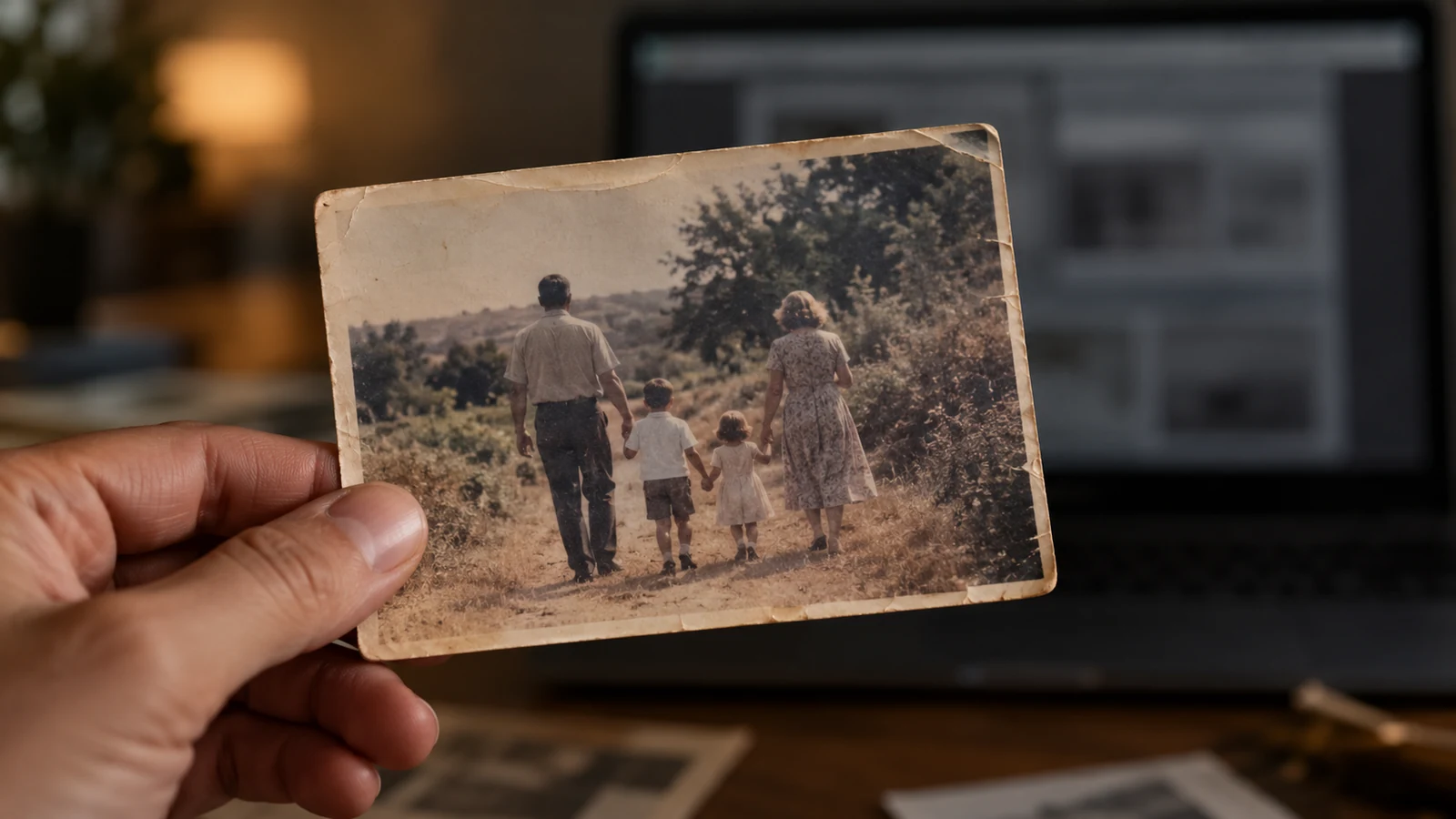
- Old or damaged photos can be animated, but the model has to guess at missing detail. Treat the result as an interpretation, not as a restoration.
If you are animating pictures for a shop, the same images may also end up on product pages; our Shopify pricing guide → explains the costs of running one.
What words should you know before you start?
- Image-to-video: the mode in which a photo is the starting frame and the tool invents the movement.
- Prompt: the short text in which you describe the movement, the mood or the camera.
- Credits: the unit in which the tool charges for a generation. The number you spend depends on length and quality.
- Watermark: a visible mark that the tool adds to free exports.
- Artefact: a visual glitch, such as a hand with the wrong number of fingers or a face that melts between frames.
- Resolution: the sharpness of the exported clip, written as 540P, 720P or 1080P.
Is it okay to animate photos of other people?
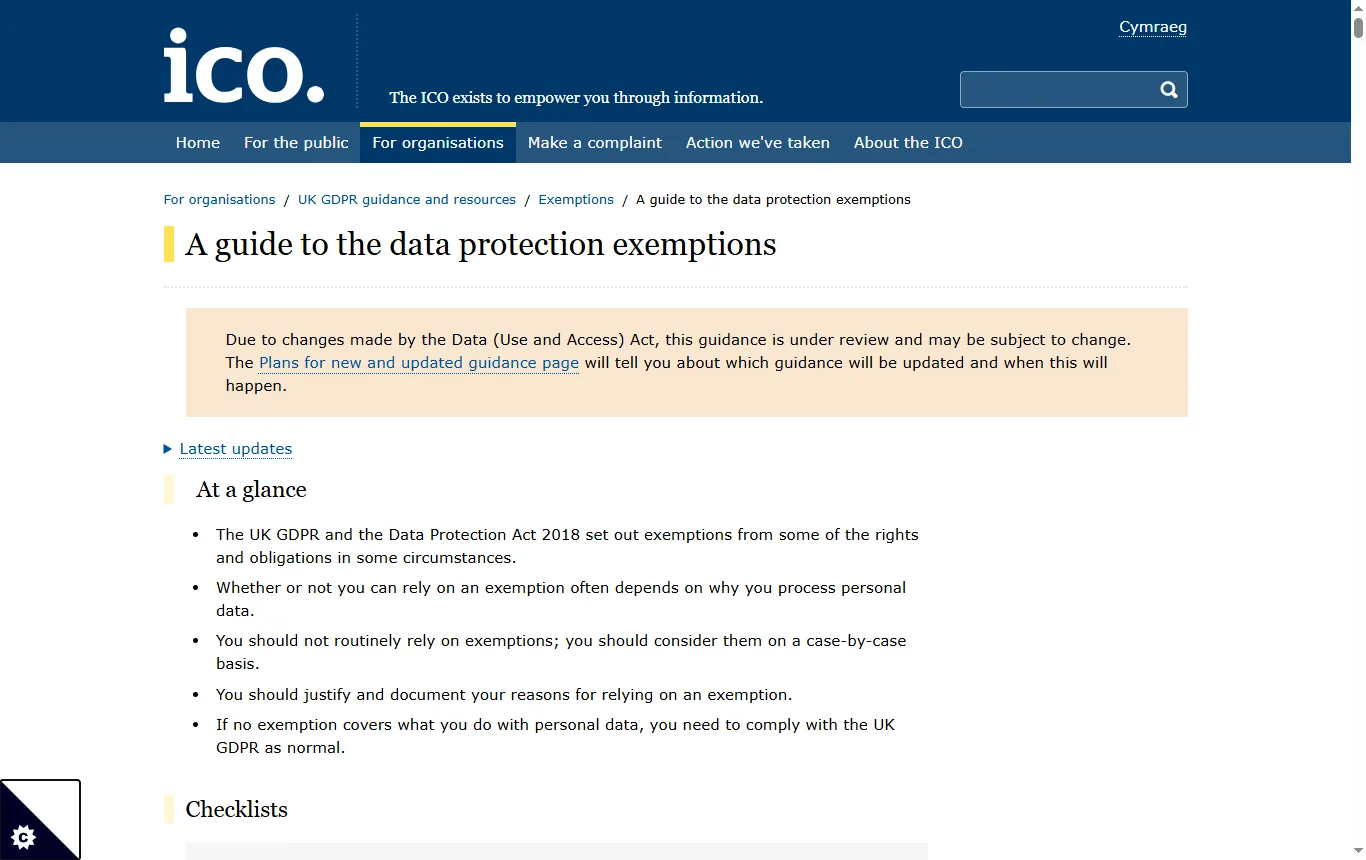
Think about the person in the picture first. The ICO's guide to the data protection exemptions says that personal data processed in the course of a purely personal or household activity, with no connection to a professional or commercial activity, is outside the UK GDPR, and gives the example of taking pictures for your own enjoyment. That is a narrow case. Posting publicly, using an animation in a business or sharing it widely changes the position, and the tool's own licence over your uploads applies as well. Kling's terms, for example, grant Kling a licence to host, reproduce and modify your inputs and outputs.
In criminal law, Section 138 of the Data (Use and Access) Act 2025 created offences of intentionally creating, or requesting, a purported intimate image of an adult without consent and without reasonable belief in consent. Legislation.gov.uk says the section came into force on 6 February 2026. Never use an animation tool for that, and never animate a photo of a person to make them appear to do or say something that would harm them.
Finally, if you post to YouTube, its help page on altered and synthetic content asks creators to disclose realistic content that makes a real person appear to say or do something they did not. Non-realistic content, such as a fantasy scene, does not need a label. Check the rules of any other platform you use.

What should you write in the prompt?
The prompt is the part you control, and short, concrete prompts usually behave better than long, poetic ones. A useful pattern has three parts: what moves, how it moves, and what the camera does.
- What moves. Name one or two things only: "the curtains", "the waves", "her hair".
- How it moves. Use plain adverbs such as slowly, gently or steadily. Avoid words that suggest sudden action if the photo is a calm portrait.
- What the camera does. "Static camera", "slow push in" or "slow pan to the left". If you say nothing, the tool decides for you.
Try the same photo with a small change of wording, and keep both versions side by side. If a result looks wrong, shorten the prompt before you lengthen it. Avoid asking for text to appear in the clip, and avoid describing real people by name; both tend to produce unreliable results and the second raises the consent questions covered above.
What mistakes should you avoid with photo animation?
- Choosing a low-quality photo, then blaming the tool for blurry motion.
- Asking for large, fast movement, which tends to distort faces and hands.
- Spending all your credits on one long clip before testing a short one.
- Ignoring the watermark until you try to publish.
- Uploading private or sensitive images to a site you know little about.
- Forgetting that the results are not guaranteed. The same prompt can give different outputs.
Which route suits which person?
- You want a moving family keepsake. Pick one tool, use its free credits, accept the watermark and share the clip privately with relatives. Check that everyone in the photo is happy with it.
- You sell something and want a lively product picture. Test two tools with the same photo, compare how they treat the shape and the label, then look at the paid terms before the clip appears in an advert.
- You post on social media for fun. Free credits are enough for occasional clips, but the watermark stays and platform labelling rules may apply.
- You make content for a living. Start from the commercial terms rather than from the free tier, because the rights decide what you can safely publish.
What should you check before you share an animated photo?
- Do you hold the rights to the photo, and do the people in it agree?
- Does the tool's licence let you use the result the way you intend?
- Is the watermark acceptable, or must you pay to remove it?
- Does the platform you are posting to require a label for realistic synthetic content?
- Have you kept the original photo, the prompt and the settings?
When is the free route not enough?
Move to a paid plan, or reconsider, if you need a clean export for a business, repeated high-resolution clips, predictable processing times or clear commercial rights. For editing the finished clip, adding titles or captions, you can use a separate editor such as the one reviewed in our Filmora review →.
Not sure? Tell us about your photo and what you want it to do
Frequently asked questions
How can I animate a photo with AI for free?
Use the free credits of an image-to-video tool, upload a clear photo, describe the movement and generate a short clip. Expect a watermark and limits.
Is there a free AI photo animator without login?
Be careful with sites that promise it, and do not upload private photos to them. The three tools above all point you to sign up.
Is there a free app to animate photos?
Several apps exist and they are not assessed here. Check the publisher, the permissions the app asks for and its terms before you install.
Can I use an AI-animated photo commercially?
Not on Kling's free tier, and DeeVid and PixVerse do not state it for free exports. Read the publisher's terms and get commercial rights in writing.
Which free tool is best to animate a photo?
None is ranked here. Compare credits, resolution, watermark and rights on the same photo in two tools.
Is it legal to animate someone else's photo?
Animating a photo for private enjoyment is a different matter from posting or selling it. Get the person's agreement, and note that creating intimate deepfakes without consent is a criminal offence in the UK.